 Seyare
This document details the process of creating a proxy server with pay-per-simultaneous connections. Proxy servers are used for anonymous internet access through an intermediate server, which is useful for various tasks such as testing, bypassing blocks and protecting privacy.
This instruction covers all proxy server setup stages, from basic parameters to complex targeting and IP rotation functions.
Stage 1: Basic proxy settings
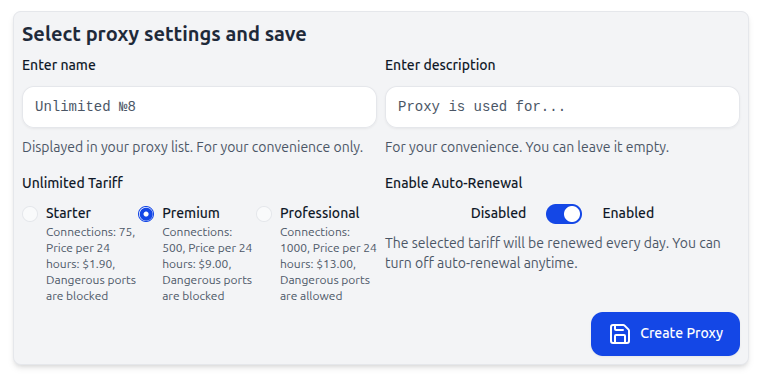
1. Proxy name
What it is: Unique name for your proxy server (e.g., “ProxyServer1”).
Why it’s needed: Helps easily identify and manage multiple proxy servers, especially if there are many of them.
2. Proxy description (optional)
What it is: Text description of proxy purpose, e.g., “Testing Google Ads” or “Hiding real IP”.
Why it’s needed: Useful for quick understanding of what purposes the proxy is used for, especially if you work in a team.
3. Plan
What it is: Plan selection for your proxy server. The plan depends on the number of simultaneous TCP connections with our infrastructure.
Why it’s needed: The number of connections determines how many processes, applications or devices can simultaneously connect to your proxy server. This is a key parameter that directly affects performance, stability and proxy operation speed, especially in case of intensive traffic or multitasking.
What is a TCP connection?
A TCP connection is an active session between your device and the server necessary for data transmission. Each request sent by your device establishes a separate TCP connection.
Browser example:
Imagine you open several tabs in a browser. Each tab can use a separate TCP connection with the server. If the page loads resources from different servers (e.g., images, scripts and styles from various sources), the browser can simultaneously open dozens or even hundreds of connections to load all this data. In some cases, this can be up to 100 TCP connections per session.
Thus, the number of simultaneous TCP connections determines how many such sessions your proxy server can process simultaneously, which is critical for speeding up work with multiple data sources, ensuring high throughput and connection stability.
Important: We cannot accurately predict how many connections your application will use, so we strongly recommend consulting with your software developer to choose the most suitable plan for your task. This will help you use our service capabilities more economically.
4. Enable auto-renewal
What it is: If this setting is activated, the selected plan will be automatically renewed every day.
Why it’s needed: Convenient for those who don’t want to worry about manual plan renewal.
Stage 2: Targeting and rotation
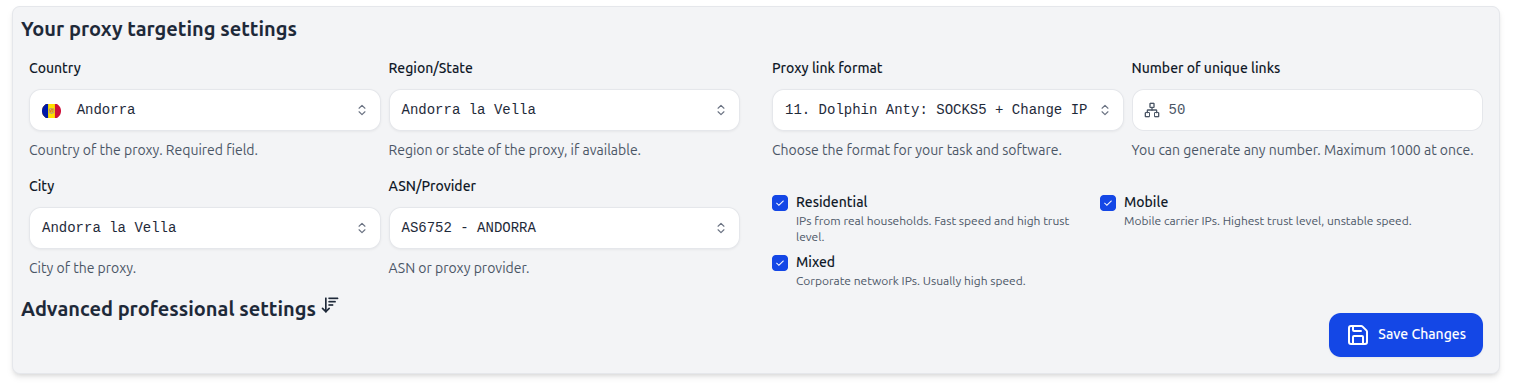
1. Country
What it is: Country selection for proxy use.
Why it’s needed: Determines the geographic region from which IP addresses will be used. This is important for tasks where localized traffic compliance is necessary.
2. Region/State
What it is: Indicates more precise location within the selected country.
Why it’s needed: Precise regional targeting is useful for tasks where geographic binding is important, e.g., for testing services dependent on region.
3. City
What it is: Indicates specific city.
Why it’s needed: Important for testing services that depend on precise city targeting.
4. ASN/Provider
What it is: ASN (autonomous system) or internet provider selection for proxy.
Why it’s needed: Allows selecting IP addresses from a specific provider, which can increase reliability or connection speed.
5. Proxy link format
What it is: Connection link format, e.g., socks5://login:password@host:port.
Why it’s needed: For correct proxy operation, it’s important to choose the appropriate format corresponding to your software.
6. Number of unique links
What it is: Indicates the number of unique proxy links that need to be generated.
Why it’s needed: Useful if you need to create several proxy links for parallel connections.
Important: Don’t create a new proxy server if you need to change targeting. Instead, change parameters in the existing proxy server settings.
7. Output IP type
What it is: Output IP type selection:
- Mobile — IP from mobile operators, high trust level, but unstable speed.
- Residential — IP from real households, high speed and reliability.
- Mixed — IP from corporate networks, usually high speed.
Why it’s needed: IP type choice depends on your tasks: for anonymity it’s better to use mobile or residential IPs, for working with large data — corporate.
Advanced settings
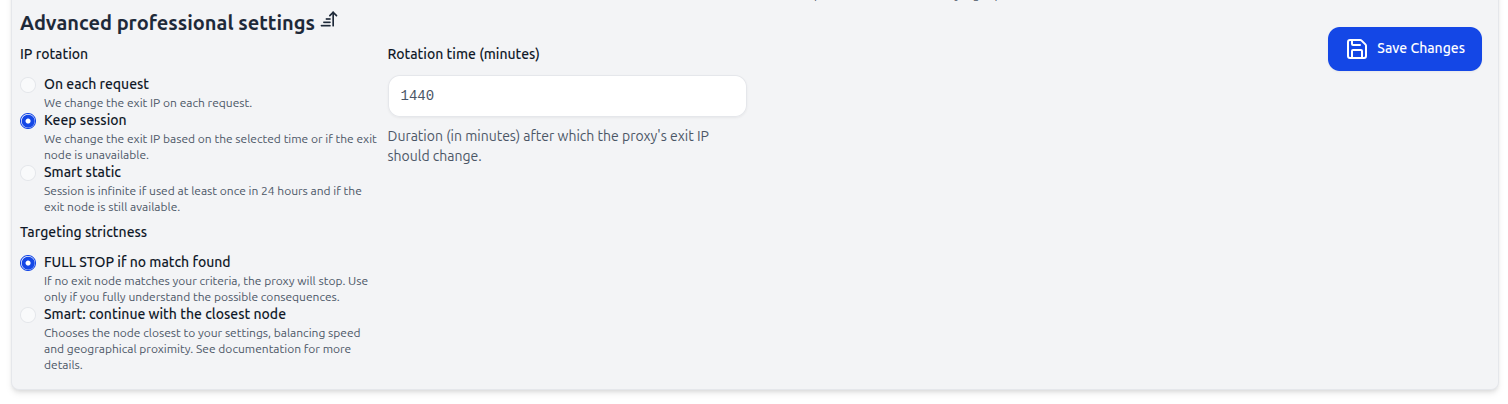
1. IP address rotation
What it is: Output IP change frequency setup:
- On each request — each new request uses a new IP.
- Keep session — IP changes after set number of minutes or in case of current IP unavailability.
- Smart static — IP changes if session is not used for more than 24 hours or if output node becomes unavailable.
Ready to test with real IPs?
Register now to get immediate access to our proxy pools.